Add animated characters to family photos: magical memories
April 11, 2026
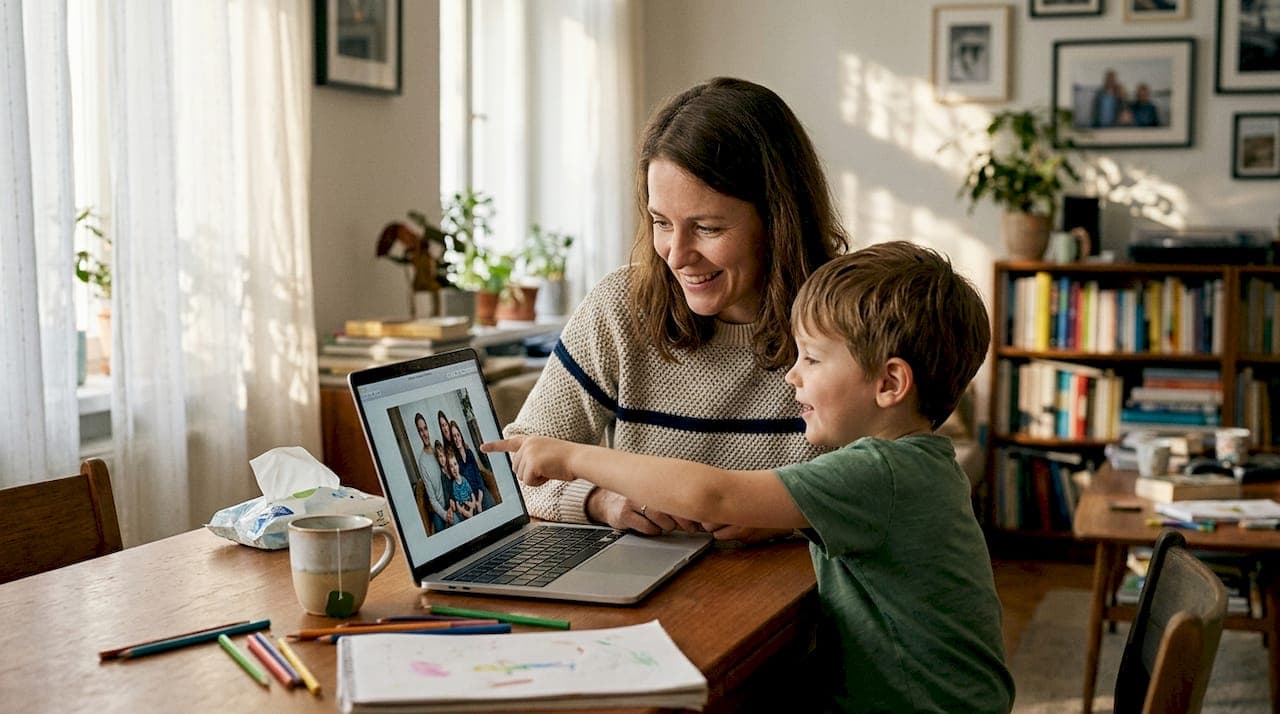
Imagine your child's face lighting up when they see Santa standing right there in your living room, or a glittering fairy perched on the Christmas tree in your own home. That moment of pure wonder is exactly what parents everywhere are chasing, and AI-powered photo editing makes it more achievable than ever. But with so many tools available, from free apps to professional platforms, it can feel overwhelming to know where to start. This guide walks you through everything you need: the right tools, clear steps, common pitfalls to avoid, and smart ways to save and share your magical creations.
Table of Contents
- What you need to get started
- Step-by-step: Adding animated characters to your photos
- Troubleshooting and common mistakes
- Saving and sharing your magical memories
- Our take: The real secret to magical family photos
- One-click magic: Create moments your kids will cherish
- Frequently asked questions
Key Takeaways
| Point | Details |
|---|---|
| Use the right AI tool | Choose a platform that matches your skill level and desired style for hassle-free edits. |
| Keep faces recognizable | Preserve your child's real features by selecting appropriate prompts and tools. |
| Start simple for best results | Simple prompts and high-quality photos yield the most magical edits. |
| Troubleshoot common issues | Know how to fix lighting or content blocks to keep the magic alive. |
| Save and share securely | Export magical memories in original quality and share them safely with family. |
What you need to get started
Before you add a single sparkle or holiday character to your family photo, a little preparation goes a long way. The good news is you don't need a design degree or expensive software. You just need the right setup and a few minutes of planning.
Choosing your platform
Primary AI photo editing platforms include Adobe Photoshop/Express, Canva Magic Studio, ChatGPT image tools, and Google Gemini. Each one has different strengths depending on your comfort level and budget. You can also explore the top apps for magical photos to find the best fit for your family.
Here's a quick comparison to help you decide:
| Tool | Free option | Best for | Ease of use |
|---|---|---|---|
| Adobe Photoshop/Express | Limited free tier | Realistic blending | Intermediate |
| Canva Magic Studio | Yes | Quick, fun edits | Beginner |
| ChatGPT-4o | Yes (limited) | Creative character styles | Beginner |
| Google Gemini | Yes | Family-friendly prompts | Beginner |
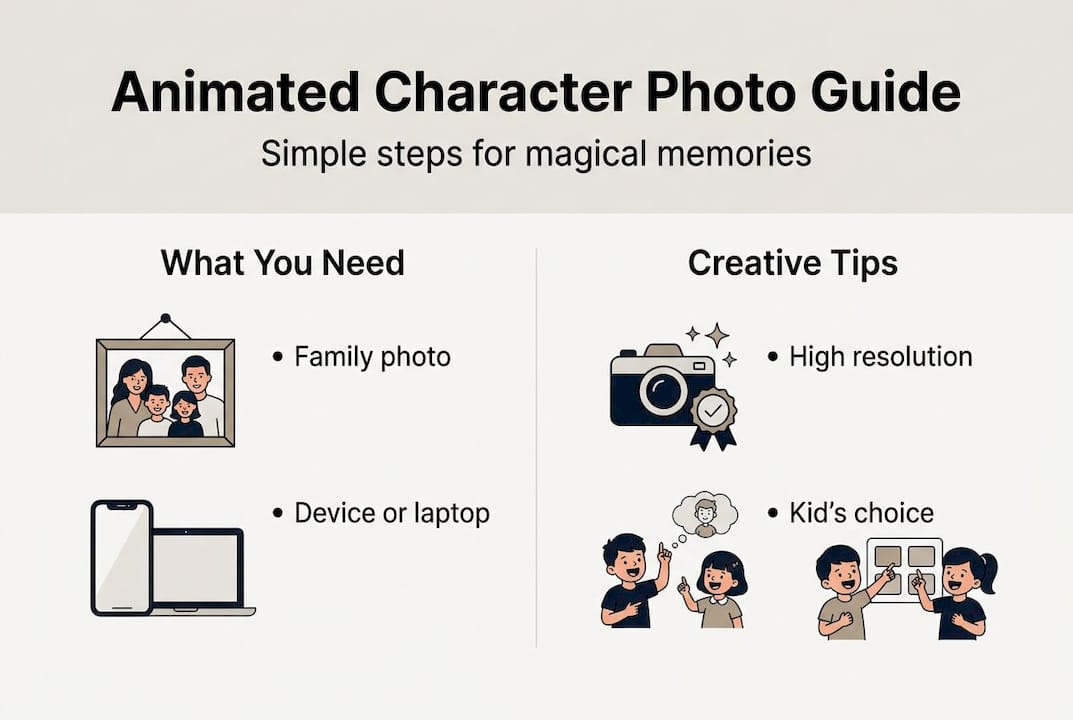
Once you've picked your platform, gather these essentials before you start editing:
- A high-resolution photo (at least 1080p or higher works best)
- Good, even lighting in the original shot (avoid harsh shadows or dark corners)
- A clear view of faces and the surrounding space where the character will appear
- A stable internet connection if you're using a web-based tool
- A reference image of the character you want to add, saved to your device
For the Canva edit tutorial, you'll upload your photo directly into the Magic Studio workspace, which makes it easy even for first-time users.
Pro Tip: Start with the highest-resolution photo you have. When AI blends a character into your scene, it reads the existing lighting and texture. A crisp, well-lit photo gives the algorithm more to work with, resulting in a far more believable and magical final image.
Step-by-step: Adding animated characters to your photos
Once you've chosen your platform and prepared your photo, it's time to bring the magic to life. Here's how to do it across the four main tools.
1. ChatGPT-4o
- Upload your family photo directly into the ChatGPT chat window.
- Type a clear prompt, such as: *"Add Santa Claus standing next to the family, preserve all faces, match the indoor lighting."
- Review the result. If the character looks off, refine your prompt with more detail.
- Download the final image from the chat interface.
ChatGPT-4o can turn family members into Pixar or Lego-style characters with a simple prompt, making it one of the most flexible options for creative parents.
2. Canva Magic Studio
- Open Canva and upload your photo to a new design.
- Select the Magic Studio tool and choose "Edit photo."
- Use the brush to highlight the area where you want the character placed.
- Type your prompt: *"Place a glowing fairy near the Christmas tree, soft lighting."
- Export as PNG or JPG at full resolution.
3. Adobe Photoshop/Express
- Open your photo in Photoshop on the web.
- Select the Generative Fill tool and draw a selection over the target area.
- Enter your prompt, for example: *"Friendly elf sitting on the fireplace mantle, realistic shadows."
- Choose from the generated variations and save.
Adobe and Canva both support Generative Fill for inserting cartoon elements and allow reference image upload for accuracy, which is a big advantage when you want a specific character look.
4. Google Gemini
- Go to the Gemini interface and upload your photo.
- Write a descriptive prompt using the Gemini prompt examples as a guide.
- Review and regenerate until you're happy with the result.
- Save the image to your device.
Here's a quick comparison of the tools in action:
| Tool | Speed | Accuracy | Kid-friendliness |
|---|---|---|---|
| ChatGPT-4o | Fast | High | High |
| Canva | Very fast | Medium | Very high |
| Adobe | Medium | Very high | Medium |
| Google Gemini | Fast | Medium | High |
Pro Tip: Save a reference image of your child's favorite character to your device before you start. Upload it alongside your family photo when the tool allows it. This gives the AI a visual target and dramatically improves how closely the final character matches what your child loves.

Troubleshooting and common mistakes
Even with the best tools, things don't always go perfectly on the first try. Here are the most common issues parents run into and exactly how to fix them.
Common problems and quick fixes:
- Character looks pasted on, not blended: Your original photo may have uneven lighting. Retake the photo near a window or under consistent indoor light before editing.
- Faces look distorted or altered: Always include "preserve all faces" in your prompt. Test with a sample crop before applying to your best photo.
- The AI refuses to generate a specific character: Certain character styles may be blocked by content policies, and matching lighting and shadows is key for believable edits. Try describing the character by appearance rather than by name, for example: "a jolly man in a red suit with a white beard" instead of "Santa Claus."
- Shadows look wrong or missing: Add the phrase "cast realistic shadows" to your prompt. Adobe's Generative Fill handles this best among the free tools.
- Result looks blurry or low quality: Always export at the highest resolution available. Avoid screenshotting the result; use the official download button.
For more creative fixes, the Gemini editing tips guide covers fun prompts and smart workarounds specifically designed for family photos.
Critical advice: Start simple. Use a clear, well-lit photo and a short, specific prompt before you experiment with complex scenes. The cleaner your starting image, the more realistic and magical the final result will look. High-resolution photos are not optional; they are the foundation of every great AI-enhanced family memory.
Saving and sharing your magical memories
You've created something truly special. Now let's make sure it lasts and reaches the right people safely.
How to export from each tool:
- ChatGPT-4o: Right-click the generated image in the chat and select "Save image as." Choose a folder you'll remember.
- Canva: Click the "Share" button, then "Download." Select PNG for the highest quality, and make sure "Download at full resolution" is checked.
- Adobe Photoshop/Express: Use "Export as" and choose JPEG or PNG at maximum quality. Avoid compressing the file at this stage.
- Google Gemini: Click the download icon beneath the generated image. Save directly to your photos app or a dedicated holiday folder.
AI-generated family photos are best preserved by exporting in original resolution and backing up securely, so always save to at least two locations, like your phone and a cloud storage service.
Sharing safely and beautifully:
- Use private albums on Google Photos or iCloud to share with family without posting publicly.
- Add a subtle watermark or your family name using Canva before sharing in larger groups.
- For printing, use a resolution of at least 300 DPI (dots per inch) to ensure sharp, vibrant results on paper.
- Consider printing a 5x7 or 8x10 as a keepsake. Services like Walgreens Photo or Shutterfly make it easy and affordable.
Pro Tip: Always save a copy of your original, unedited photo before you begin any AI editing. Store it in a separate folder labeled "originals." If you ever want to try a different character or style later, you'll have a clean starting point ready to go.
Our take: The real secret to magical family photos
Here's something most guides won't tell you: the tool you choose matters far less than the intention behind the edit. Parents often spend hours chasing technical perfection, tweaking shadows and regenerating prompts, when the real magic comes from something much simpler.
Let your kids choose the character. When a child picks the dragon, the unicorn, or the specific version of Santa they believe in, their reaction to the final photo is completely different. They recognize it as their world, not something a parent designed for them. That recognition is where the wonder lives, and it's proof the magic is real.
Overcomplicating the process can actually dilute the experience. A slightly imperfect fairy with the right character, placed in your actual living room, will mean more to your child than a technically flawless image that feels generic. Focus on the memory you're creating, not the pixels. The best family photos are the ones that feel true to your family's story, not the ones that look like they came from a studio.
One-click magic: Create moments your kids will cherish
All the steps above work beautifully, but if you want the fastest, most realistic results without the learning curve, WonderLens for magical memories was built exactly for this.
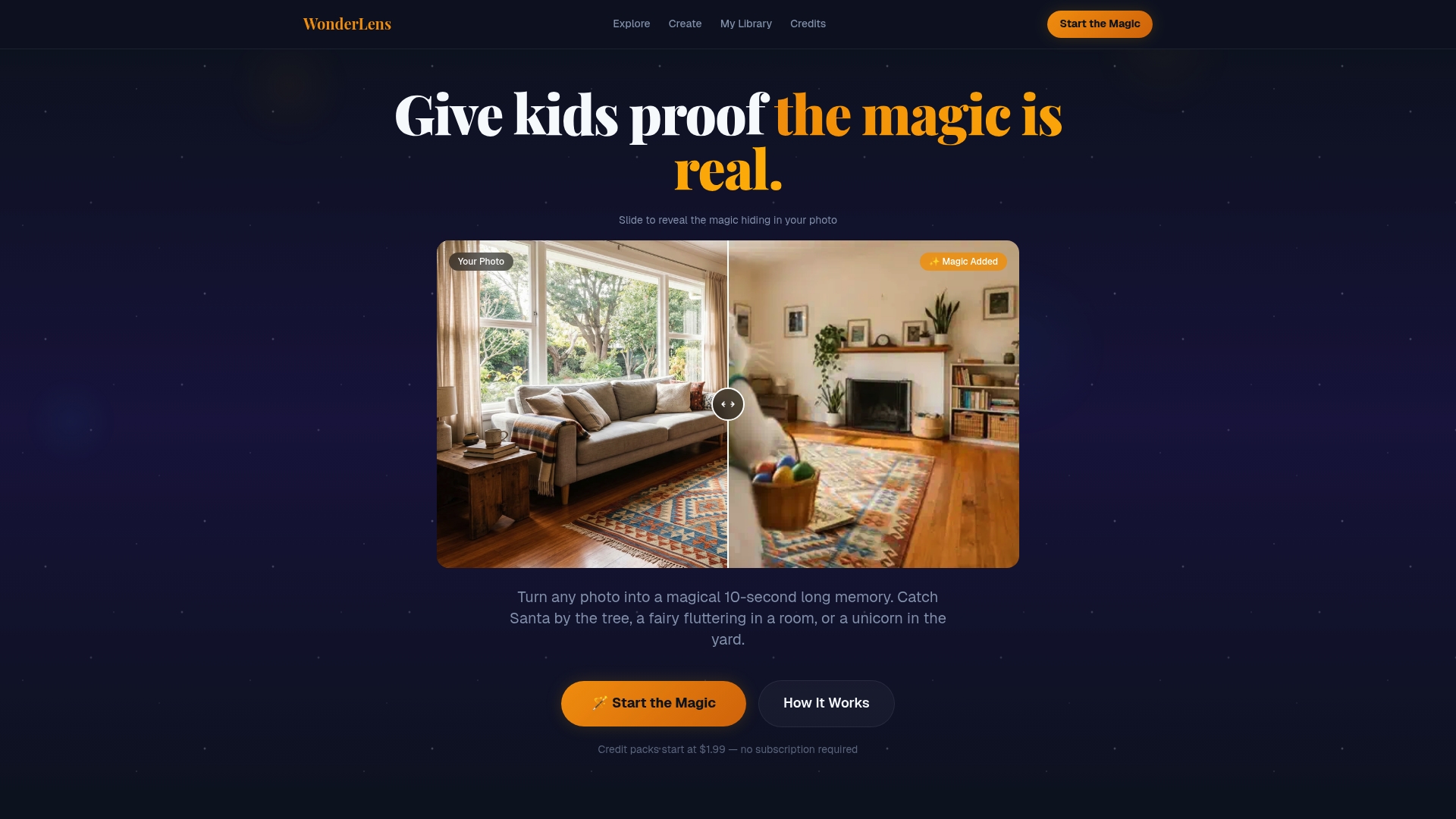
WonderLens transforms your family photos into cinematic 10-second animated videos, with characters like Santa, fairies, unicorns, and dragons appearing right inside your home. The AI handles lighting, shadows, and movement automatically, so you get a shareable, realistic keepsake in minutes. No design skills needed. No complicated prompts. Just upload your photo, choose your character, and watch your child's face light up. Credits start at just $1.99, making it one of the most magical and affordable gifts you can give this holiday season.
Frequently asked questions
Which AI photo editor is best for adding cartoon characters to family pictures?
Primary AI photo editing platforms include Adobe Photoshop/Express, Canva Magic Studio, ChatGPT image tools, and Google Gemini, and all four are parent-friendly, accurate choices for adding animated characters to family photos.
How do I keep my child's real face in the photo when using AI?
Choose tools and prompts that preserve faces, like "add Santa next to family, preserve faces," and always prioritize tools preserving real faces by testing a sample crop before finalizing your favorite photo.
Are there free tools for adding animated characters to photos?
Yes, free options include ChatGPT-4o, Google Gemini, and basic Generative Fill in Canva or Adobe Express. Start with free ChatGPT/Gemini for quick magical edits before exploring paid upgrades.
Why can't I add certain cartoon styles, like Marvel or Simpsons, to my photo?
Content policies block specific styles like Marvel or Simpsons due to copyright restrictions. Try describing the character's appearance instead of using the trademarked name to work around these filters.