Holiday Photo to Video: A Family Comparison Guide
August 5, 2026
For most families, a short AI-animated clip is the fastest, most magical way to turn holiday photos into a keepsake kids will actually remember. It costs as little as $1.99, takes minutes, and produces a cinematic 10-second video in MP4 format that you can share instantly. If character magic is not the goal, a polished slideshow template is the next best option.
Quick alternatives at a glance:
- AI character animation (e.g., Wonderlens): Santa or a fairy appears in your living room photo. Instant output, credit-based pricing, no editing skills needed. Trade-off: short runtime by design.
- Slideshow/template tools: Drag-and-drop simplicity, free tiers available, full music control. Trade-off: no animated characters, looks like a standard slideshow.
- Manual video editors: Maximum creative control, any length. Trade-off: steep learning curve, hours of editing time.
- Professional videographer/service: Polished, custom result. Trade-off: highest cost, days of turnaround.
Table of Contents
- Which holiday photo-to-video approach is right for your family?
- What does creating a holiday photo-to-video actually look like?
- What do holiday photo-to-video options typically cost?
- What does research say about photos vs. video and memory?
- Key Takeaways
- Why short clips hit harder than long ones
- Wonderlens gives you the fastest route to holiday magic
- Sources and further reading
Which holiday photo-to-video approach is right for your family?
Each of the four main approaches serves a different kind of parent. Here is how they map to real family situations.
- AI photo-to-video/character animation: Best for parents who want a wow moment for young kids. Santa padding through your actual living room, shadows matching your lamp light, ears twitching. Output is short (around 10 seconds), shareable, and requires zero editing skill. Pro: cinematic realism. Con: limited to short clips.
- Slideshow/template tools: Best for parents who want a longer recap of the whole holiday, with full control over photo order, captions, and music. PowerPoint for the web supports Ken Burns effects, transitions, and MP4 export in multiple aspect ratios. Pro: free or low cost, flexible length. Con: no animated characters, more manual work.
- Manual video editors (mobile/desktop): Best for parents comfortable with apps like iMovie or CapCut who want a custom family film. Pro: total creative control. Con: 2–4 hours of editing for a polished result.
- Professional service: Best for milestone events where quality is non-negotiable. Pro: broadcast-quality output. Con: $150–$500+ and a multi-day wait.
Pro Tip: If your child is under eight, the character-animation route consistently produces the strongest reaction. The realism of proper lighting and shadow integration is what separates a magical moment from a novelty sticker.
What does creating a holiday photo-to-video actually look like?
The core steps are the same across every approach: select photos, set the order, add music or narration, then export. Execution is where they diverge.
AI character animation (Wonderlens)
- Choose a well-lit, wide-angle photo of your living space (5 minutes).
- Select a character: Santa, Easter Bunny, fairy, dragon, and more (1 minute).
- Preview the AI-rendered clip with lighting and shadow integration (1 minute).
- Purchase credits and download your MP4 (2 minutes).
Total time: under 10 minutes. Output: 10-second cinematic clip, 16:9 or 9:16. For detailed photo-preparation tips, the Wonderlens animation guide covers framing and resolution recommendations.
Slideshow/template tool
- Open a template in PowerPoint, Canva, or a similar platform (2 minutes).
- Drop in 6–15 photos; set slide duration and transitions (10–20 minutes).
- Add a music track and captions (5–10 minutes).
- Export as MP4 in your chosen aspect ratio (2–5 minutes).
Total time: 20–40 minutes. Troubleshooting tip: if export stalls, reduce photo resolution to under 5 MB per image.
Manual video editor
- Import photos and any short video clips into iMovie, CapCut, or DaVinci Resolve (10 minutes).
- Arrange the timeline, trim clips, and apply Ken Burns zoom to still photos (30–60 minutes).
- Add licensed music, narration, and text overlays (20–30 minutes).
- Export as MP4 at 1080p or 4K (5–10 minutes).
Total time: 1.5–2 hours minimum. Common issue: audio sync drift — render a short test clip first.
Professional service
- Share a Google Drive or Dropbox folder of your best photos and clips (15 minutes).
- Brief the editor on style, music preference, and runtime (15 minutes).
- Review the first draft and request revisions (1–2 days).
- Receive the final MP4 and archive it (same day as approval).
Total time: 3–7 days. Always confirm file ownership and export format before paying.
What do holiday photo-to-video options typically cost?
The photo-to-video transformation guide from Wonderlens puts it plainly: cost and turnaround time move in opposite directions. The fastest options are also the cheapest.
- AI animation (Wonderlens): — Starting at $1.99 per credit. First video is free. Output ready in minutes.
- Slideshow templates: — Free (PowerPoint web, Canva free tier) to $15–$30 for premium template packs. Output in under an hour.
Quick scenario: A 10-second surprise clip for Christmas morning costs $1.99 and takes 10 minutes with Wonderlens. A 2-minute holiday recap slideshow with 12 photos costs nothing in software (PowerPoint web) and takes about 30 minutes. A 5-minute custom family film from a professional editor runs $200–$350 and arrives in 4–5 days.
What does research say about photos vs. video and memory?
Taking photos supports long-term memory better than recording video. A quasi-experimental study published in PMC with 120 participants found a striking gap between groups.
| Group | Recall loss over time |
|---|---|
| Photo-taking | 39.86% |
| Video-recording | 78.10% |
| Observation only | 78.76% |
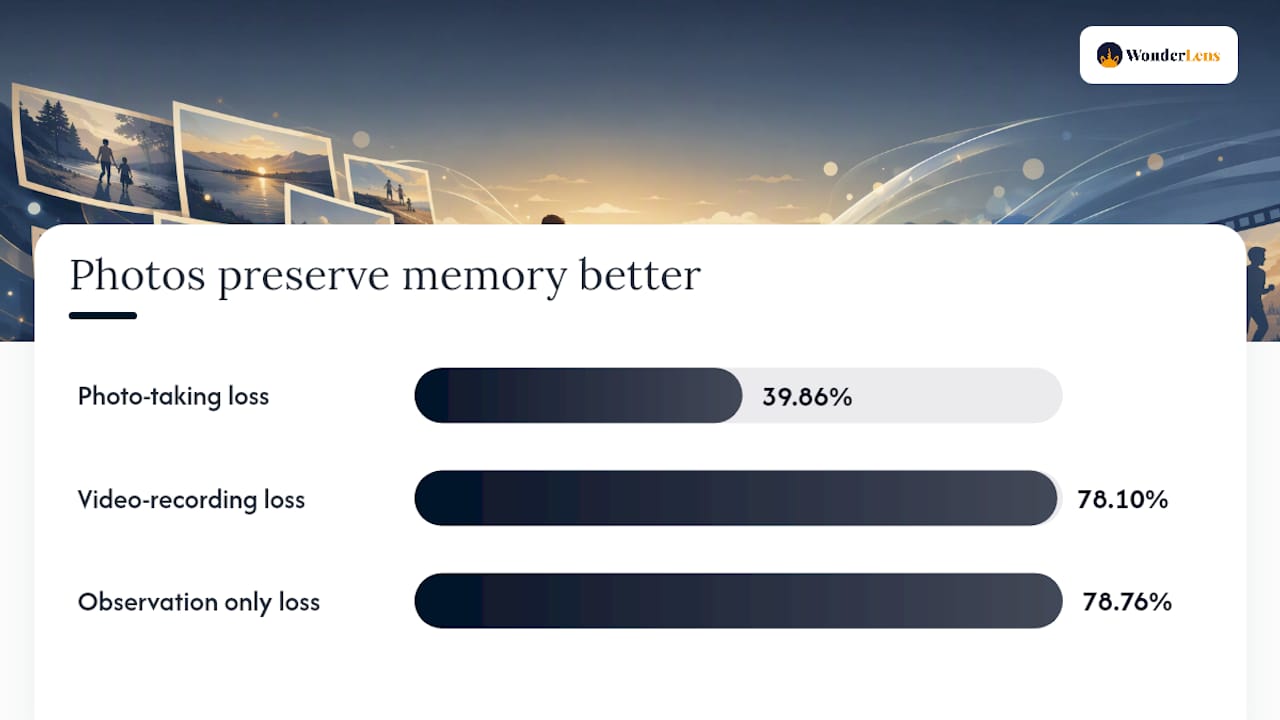
The photo-taking group lost 39.86% of recall over time, while video-recording participants lost 78.10%, and observation-only participants lost 78.76%, confirming that photo-taking supports much stronger long-term memory retention. The likely reason: actively framing a shot keeps the brain engaged with the scene, while passive recording encourages mental checkout.
For families, the practical takeaway is clear. Take photos at the moment; use short video clips for emotional context and shareability. Combining both, a handful of well-chosen photos plus a 10-second animated clip, gives you the memory cue and the shareable magic in one package. You can even pair a short video with a custom printed photo book for a keepsake that works on screen and on the shelf.
Key Takeaways
For most families, short AI-animated clips paired with a curated photo set deliver the strongest memory cues and the most shareable holiday surprise at the lowest cost and effort.
| Point | Details |
|---|---|
| Choose your approach first | Match the tool to your goal: AI animation for magic, templates for recaps, manual editors for full control. |
| Collect 6–10 strong photos | Candid shots with clear lighting outperform posed group photos for both emotion and AI rendering quality. |
| Photos beat video for recall | The PMC study found photo-takers lost 39.86% recall over time, while video-recorders lost 78.10%—nearly double that. |
| Export in MP4 at 1080p | Use 9:16 for social platforms and 16:9 for email or TV; always confirm music licensing before sharing. |
| Wonderlens for fastest results | First video is free, credits start at $1.99, and a cinematic 10-second clip is ready in under 10 minutes. |
Why short clips hit harder than long ones
Most parents assume longer means more memorable. The research and the reactions tell a different story.
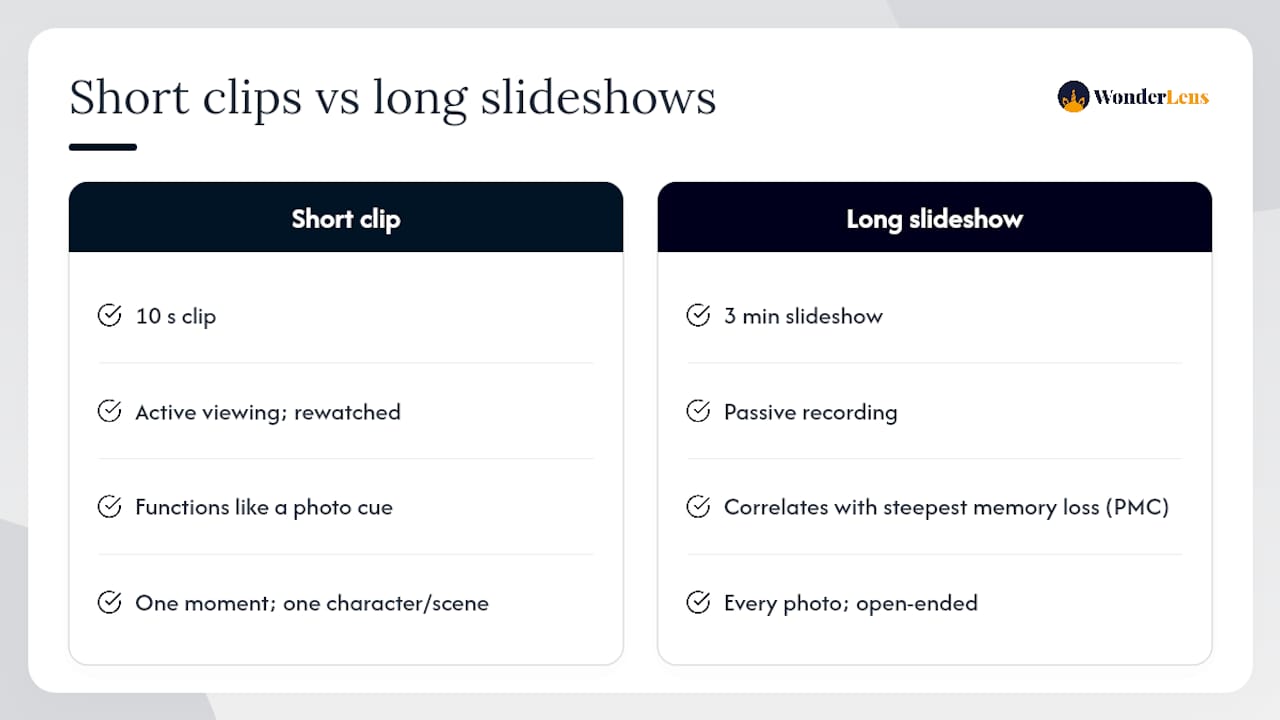
A 10-second clip of Santa padding across your actual living room floor, shadows bending around the couch, golden light catching the tree, lands harder than a three-minute slideshow of every holiday photo you took. Why? Because it is specific, it is surprising, and it is over before the brain has time to disengage. The PMC recall data reinforces this: passive recording correlates with the steepest memory loss. A short, intentional clip that a child watches actively, and watches again, functions more like a photo cue than a passive recording.
The families who get the most out of this format are not the ones with the most photos. They are the ones who pick the single best moment, frame it with one character or one scene, and let the magic do the work. That is the case for short cinematic clips, and it is why tools built around that constraint tend to produce better keepsakes than open-ended editors that invite you to add just one more slide.
Wonderlens gives you the fastest route to holiday magic
Skip the hours of editing. Wonderlens places Santa, the Easter Bunny, a fairy, or a dragon directly into a photo of your home, with AI-rendered lighting and shadows that make the scene look genuinely real. Your child sees their own living room. The character is right there.
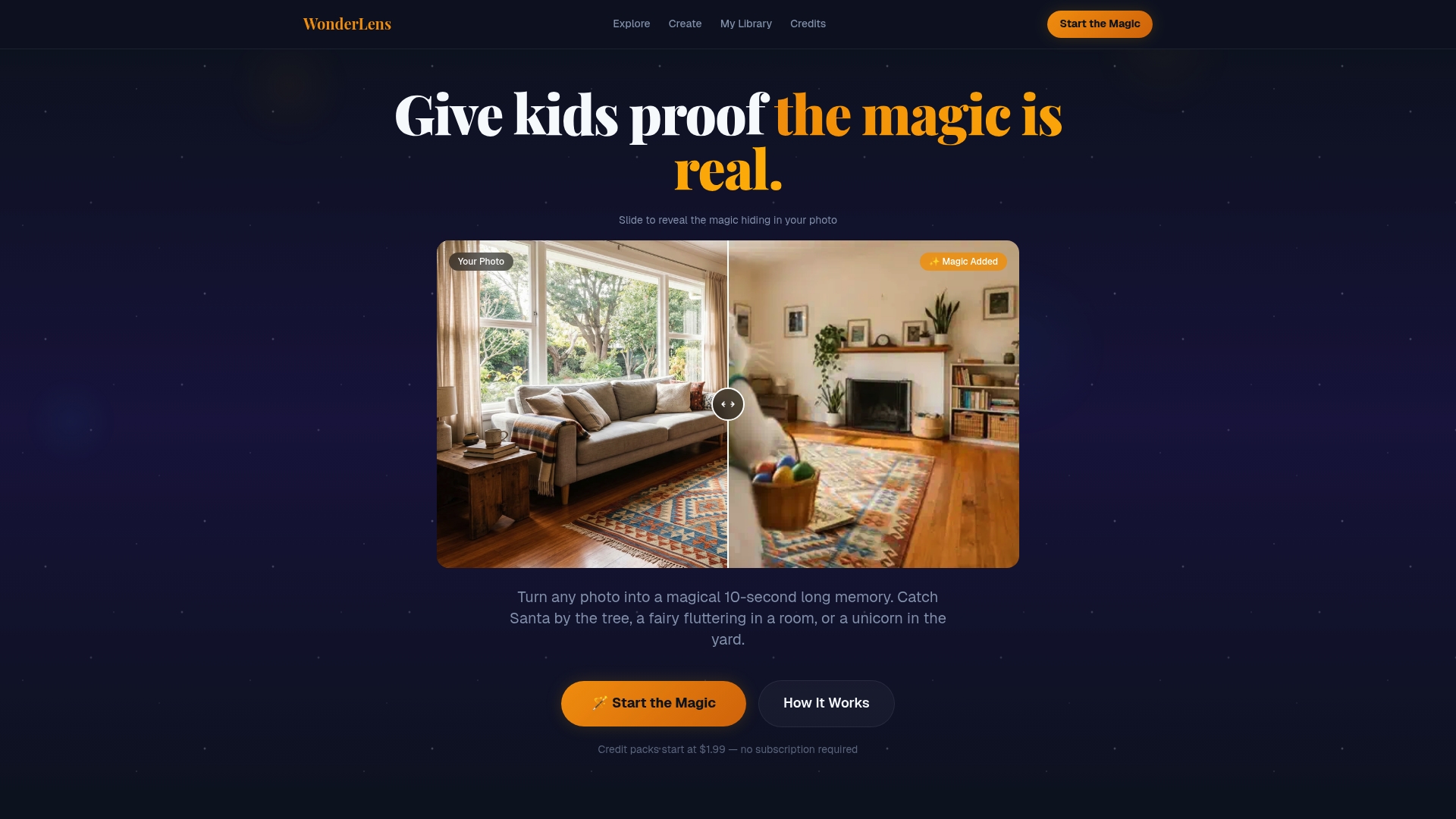
Your first video is completely free. After that, credits start at $1.99 per clip, with no subscription and no lock-in. The whole process takes under 10 minutes in your browser. Wonderlens processes your photo securely, and you download the finished MP4 to share however you choose.
Ready to create a moment your kids will ask to watch again? Start your first free video at Wonderlens.ai today.
Sources and further reading
- Capturing the Experience: How Digital Media Affects Memory Retention in Museum Education - PMC
- Photo slideshow maker — PowerPoint for the web
- Creative photo animation steps for magical family memories — WonderLens | WonderLens
- Tips for Personalized Holiday Videos Families Will Love. WonderLens | WonderLens
- Photo to Video Transformation Guide for Families. WonderLens | WonderLens
- Create a custom book with photos: step-by-step guide