How to Animate Family Photos: A Magical Guide
June 8, 2026
Animating family photos is the process of transforming still images into short, moving memories using AI-powered tools that detect faces, map motion, and generate realistic movement. You can do this at home in minutes using platforms like MyHeritage Deep Nostalgia, Canva, and KidsAI, without any design experience. The results range from a grandmother's gentle smile coming to life to a child's crayon drawing suddenly walking across the screen. This guide covers everything you need: preparation, step-by-step instructions, tool comparisons, and tips for keeping animations natural and meaningful.
How to animate family photos: what you need before you start
The quality of your animation depends almost entirely on the quality of your source photo. AI tools can only work with what you give them, so preparation matters more than most people expect.
Digitizing physical prints is the first step if your photos are not already digital. Scan prints at 300 to 600 DPI for optimal results. If you are using a smartphone instead of a scanner, place the photo flat on a surface with even, indirect lighting. Hold your phone parallel to the image to avoid perspective distortion, and never use direct flash. This keeps the facial details sharp enough for AI processing.
Choosing the right photo makes a bigger difference than any setting inside the app. Look for:
- Clear, frontal face shots with both eyes visible
- Simple or neutral backgrounds
- Good contrast between the subject and background
- Minimal blur, grain, or heavy shadows across the face
- File formats accepted by most platforms: JPG, PNG, or WebP
Multiple small faces or extreme angles cause warping and poor animation quality. If you have a group photo you love, crop it to individual faces before uploading. MyHeritage Deep Nostalgia, for example, processes one face per animation best, so cropping is not optional. It is the difference between a clean result and a distorted one.
For old or damaged photos, run them through a photo repair tool before animating. MyHeritage applies automatic photo enhancement during processing, but pre-repairing faded or scratched images gives the AI a stronger foundation to work from.
Pro Tip: Crop your photo so the face fills at least 60% of the frame before uploading. This single step improves AI facial detection more than any resolution adjustment.
Step-by-step guide to animating photos with AI tools
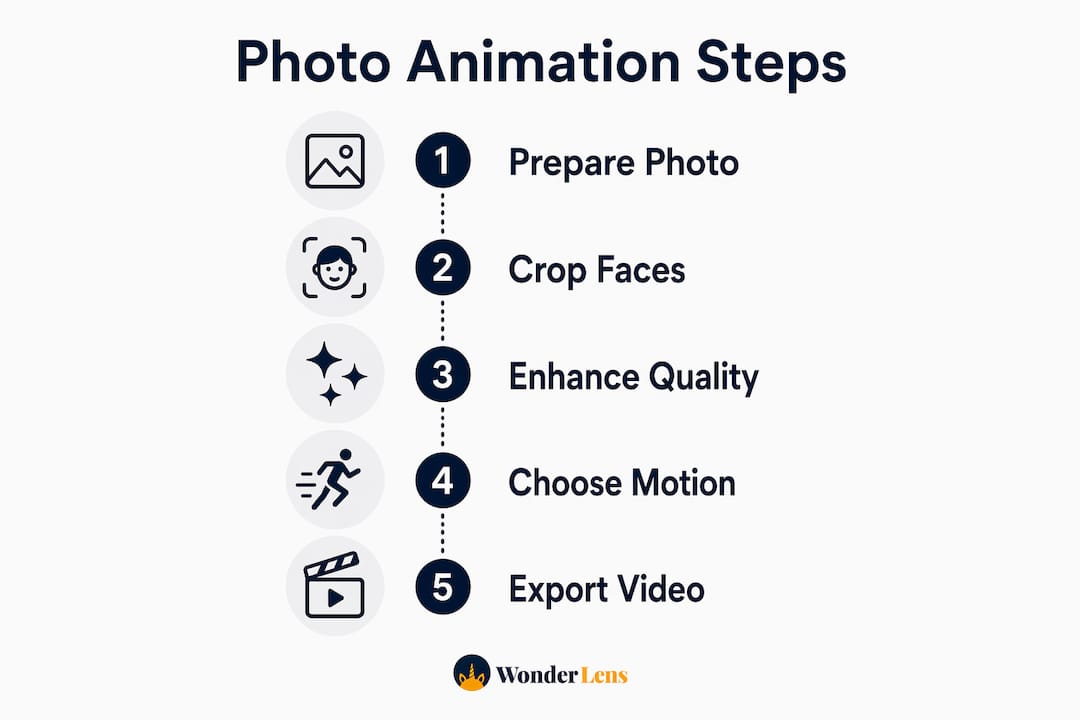
Once your photo is ready, the process is straightforward. The steps below apply broadly across the most popular platforms, with tool-specific notes where they differ.
-
Choose your platform. Select based on your photo type. MyHeritage Deep Nostalgia works best for portraits and old family photos. Canva suits casual snapshots and creative projects. KidsAI is built specifically for children's drawings. Kaiber handles artistic and stylized animations.
-
Create an account or sign in. Most platforms offer a free tier with limited exports. MyHeritage and KidsAI both allow a small number of free animations before requiring a subscription or credit purchase.
-
Upload your photo. Use the highest resolution version you have. Images of at least 1080 pixels produce noticeably better motion quality than lower-resolution uploads. Portraits with simple backgrounds yield the best results in both motion and flipbook modes.
-
Select your animation style. Most platforms offer presets. Common options include subtle blink, gentle smile, slight head turn, or a parallax drift for landscapes. Kaiber offers three distinct modes: Flipbook for full video generation, Motion for subtle parallax movement, and Transform for style-shifting animations. Choose based on what feels right for the photo.
-
Adjust duration and speed settings. Shorter clips of 3 to 6 seconds feel more natural for portrait animations. Longer durations work better for scenic or artistic images.
-
Preview before downloading. Always watch the full preview. Check for unnatural eye movement, skin texture flickering, or background warping. If something looks off, try a different animation preset or re-crop the photo.
-
Download or share. Most platforms export as MP4 or GIF. Check watermark policies before sharing publicly. Some free tiers add a platform watermark to the video.
Common troubleshooting: If the animation looks unnatural, the most likely causes are a low-resolution source image, a face that is too small in the frame, or a busy background confusing the AI. Re-crop, re-scan, or switch to a cleaner photo and try again.
How to animate children's drawings and family artwork
Animating a child's drawing is one of the most magical things you can do with AI. The result is not just a moving image. It is your child's imagination made real, and kids react to it with genuine wonder.
KidsAI is purpose-built for this. It animates drawings while preserving the child's artistic style, adding subtle motion without replacing or redrawing the original art. The child's wobbly lines and unique proportions stay intact. Only the movement is added.
Getting a good result from a drawing requires specific preparation:
- Use plain white paper and dark, bold markers. Avoid overlapping limbs on some parts to support accurate joint detection by the AI.
- Place the drawing flat with even lighting and crop tightly to the character before uploading. High contrast between the drawing and the paper dramatically improves AI recognition.
- Avoid drawings with very faint pencil lines or heavily layered colors. The AI struggles to distinguish limbs from background in low-contrast images.
- Simple, single-character drawings animate better than busy scenes with multiple overlapping figures.
Pro Tip: Have your child color their drawing with bold, solid colors before you photograph it. The stronger the contrast, the more accurately the AI maps the character's body for motion.
Motion presets for drawings work best when kept gentle. A slow walk cycle, a wave, or a subtle bounce feels true to the drawing's spirit. Dramatic action sequences can distort the character's proportions and lose the hand-drawn charm that makes the animation special.
Tips for creating natural and meaningful animated family photos
The single most important principle in family photo animation is restraint. The goal is to enhance a memory, not to transform it into something unrecognizable.
Creative specialists recommend subtle, natural movements like blinking, a gentle smile, or a slight head turn for family portraits. These movements feel like the person is present in the room with you. Dramatic animations, by contrast, can feel unsettling, especially with older or more formal portraits.
Here is what separates a meaningful animation from a gimmicky one:
- Match the animation to the photo's mood. A formal portrait from the 1940s deserves a slow, dignified movement. A casual beach snapshot can handle something livelier.
- Preserve background consistency. Consistent motion sequences prevent identity drift, where a subject's face or features appear to shift between frames. Advanced tools use seed locking to stabilize output. If your platform offers this setting, use it.
- Avoid looping animations that feel mechanical. A single, short motion that fades out feels more like a living memory than a GIF that repeats endlessly.
- Choose gesture sequences that match the subject's personality. A grandparent's gentle nod carries more emotional weight than a generic head-turn preset.
"The best animated family photos don't look animated. They look like the moment just before the shutter clicked."
For formal portraits, stick to eye blinks and micro-expressions. For casual snapshots, you have more freedom to experiment with smiles and slight movement. The photo's original integrity should always come through.
Comparing the best apps to animate photos
Choosing the right tool depends on your photo type, your comfort with technology, and what you want to do with the final video.
| Tool | Best for | Free tier | Output format | Watermark on free |
|---|---|---|---|---|
| MyHeritage Deep Nostalgia | Old portraits, single faces | Yes (limited) | MP4, GIF | Yes |
| Canva | Casual photos, creative projects | Yes | MP4, GIF | No |
| KidsAI | Children's drawings | Yes (limited) | MP4 | Yes |
| Kaiber | Artistic, stylized animations | Trial only | MP4 | Yes |
| LetsEnhance | Pre-processing low-res images | Yes (limited) | JPG, PNG | No |
MyHeritage Deep Nostalgia remains the most recognized tool for animating old family photos, largely because of its facial motion quality and automatic photo repair. Canva is the easiest entry point for parents who already use it for other projects. KidsAI stands alone for bringing kids' drawings to life with motion. Kaiber suits families who want cinematic or stylized results rather than realistic face animation.
For turning family photos into videos with a narrative feel, combining a tool like LetsEnhance for upscaling with MyHeritage or Kaiber for animation gives you the best output quality. Think of LetsEnhance as the prep step and the animation platform as the final stage.
Key takeaways
Animating family photos produces the most meaningful results when you start with a high-resolution, well-cropped image and choose subtle, personality-matched motion over dramatic effects.
| Point | Details |
|---|---|
| Prepare your source photo first | Scan at 300 to 600 DPI or photograph flat with even lighting before uploading. |
| Crop to a single face | MyHeritage and most AI tools perform best with one clear, frontal face per upload. |
| Choose subtle motion | Blinking and gentle smiles preserve authenticity better than dramatic animation sequences. |
| Match tool to photo type | Use KidsAI for drawings, MyHeritage for portraits, and Kaiber for stylized results. |
| Prevent identity drift | Use seed locking or consistent motion presets to keep facial features stable across frames. |
Why restraint is the real secret to animated family photos
I have watched families share animated photos at reunions, birthday parties, and holiday gatherings. The ones that land hardest are never the most technically impressive. They are the ones where a great-grandmother blinks slowly in a 1952 portrait, or where a child's crayon dragon takes a single step forward. The magic is in the recognition, not the spectacle.
The mistake most people make when they first discover these tools is choosing the most dramatic animation preset available. The result feels more like a special effect than a memory. When you dial it back to a single blink or a half-smile, something shifts. The photo stops being a photo and starts feeling like a moment you almost remember being in.
My honest advice: treat animation as a finishing touch, not a transformation. The original photo's integrity is the whole point. The movement is just the thing that makes you catch your breath for a second. Start with your most meaningful photo, use the subtlest preset available, and share it with one person before you share it with everyone. Their reaction will tell you everything you need to know about whether you got it right.
— Jeremiha
Bring your family's story to life with Wonderlens
If you want to go beyond basic photo animation and create something truly cinematic, Wonderlens takes the experience to a different level entirely. Instead of just animating a face, Wonderlens places magical characters like Santa, unicorns, and fairies directly into your home environment, with realistic lighting, shadows, and movement that match your actual space.
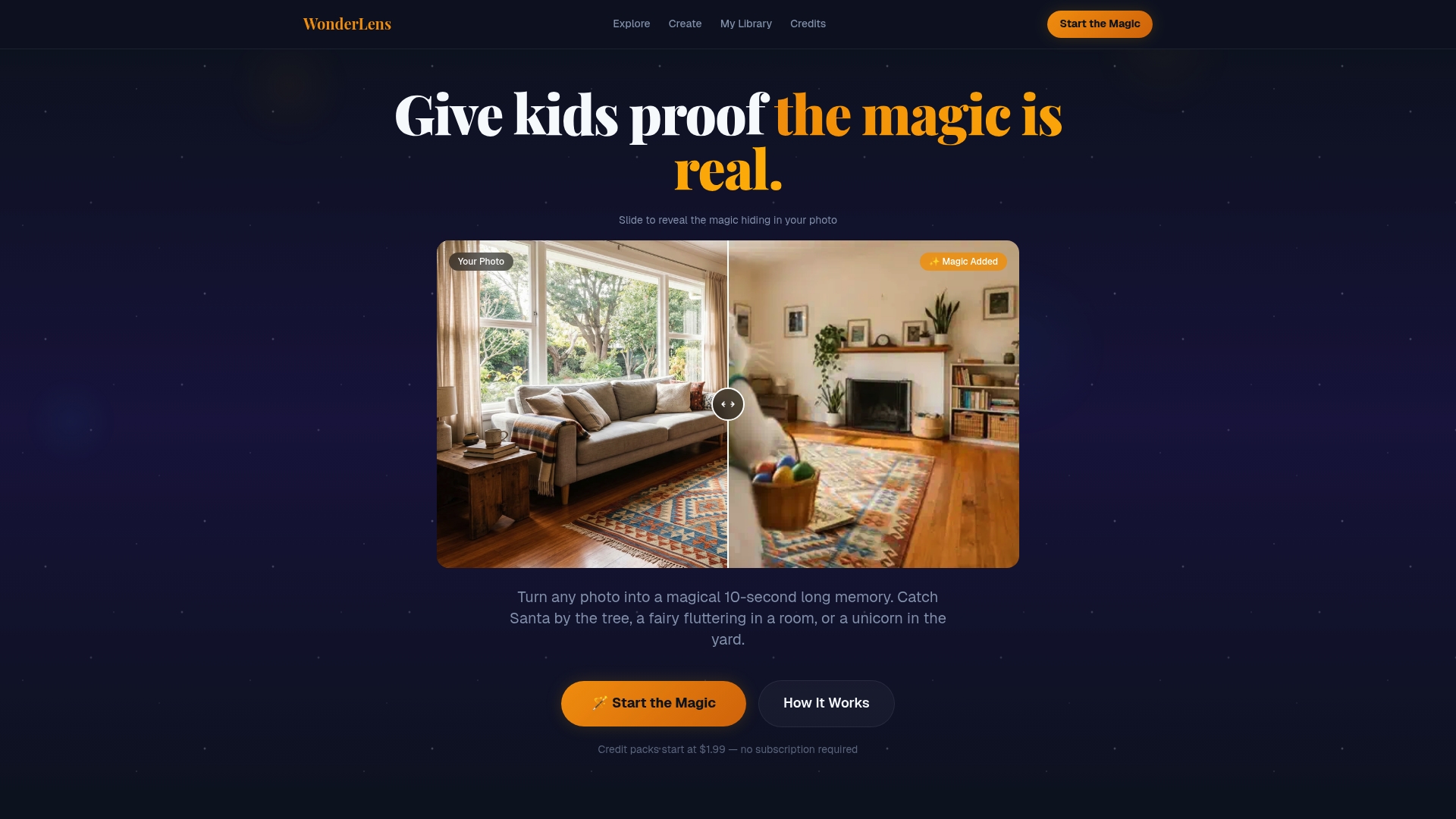
Every video is a 10-second memory your kids will ask to watch again and again. The platform is family-friendly, easy to use, and starts at just $1.99 per video. Explore the Wonderlens blog for creative ideas on how to use animated family moments for holidays, birthdays, and everyday magic. When you are ready to create your first video, start at Wonderlens and see what your home looks like with a little wonder in it.
FAQ
What is the best app to animate old family photos?
MyHeritage Deep Nostalgia is the most widely used tool for animating old portraits, offering automatic photo repair and realistic facial motion. It works best with single, clear frontal faces scanned at 300 DPI or higher.
How do I animate photos at home without design skills?
Upload your photo to a platform like MyHeritage, Canva, or KidsAI, select a motion preset, and download the result. No design experience is needed, and most platforms complete the animation in under a minute.
Can I animate a child's drawing with AI?
Yes. KidsAI is built specifically for animating hand-drawn artwork, preserving the child's original style while adding gentle motion. Use bold, dark markers on white paper for the best AI recognition results.
Why does my animated photo look unnatural or distorted?
The most common causes are a low-resolution source image, a face that is too small in the frame, or a busy background. Re-crop the photo so the face fills most of the frame and re-upload at the highest resolution available.
What file formats do animation tools accept?
Most platforms accept JPG, PNG, and WebP files. For best results, use the highest resolution version of your photo and avoid heavily compressed files, which reduce AI motion accuracy.