Santa video rendering: How AI creates holiday magic
May 5, 2026
Every parent has seen those jaw-dropping videos online. Santa is sitting in someone's actual living room, calling a child by name, mentioning their wish list, and glancing at the family Christmas tree in the corner. It looks impossibly real. And if you've ever wondered how that magic is made, or whether you could create it yourself without a film degree, you're in the right place. This guide breaks down exactly what Santa video rendering means, how the process works step by step, what affects the quality of your final video, and how you can use it to create a holiday memory your child will talk about for years.
Table of Contents
- What does Santa video rendering mean?
- The Santa video creation process step by step
- How fast is Santa video rendering, and what affects the results?
- What makes rendered Santa videos feel magical for kids?
- The truth about Santa video rendering: What most guides miss
- Make this Christmas unforgettable with your own Santa video
- Frequently asked questions
Key Takeaways
| Point | Details |
|---|---|
| Personalization is essential | Santa video rendering lets you add your child’s name and wishes for a magical experience. |
| AI technology does the heavy lifting | Modern tools handle the script, voiceover, lip-sync, and video export automatically. |
| Turnaround time varies | Delivery can range from minutes to over an hour depending on settings and revisions. |
| Quality beats speed | Taking time for revisions can make the final video truly memorable for your child. |
What does Santa video rendering mean?
The word "rendering" sounds technical, but the idea is simple. Rendering is just the process of producing a finished video from a collection of digital pieces. Think of it like baking a cake. You gather your ingredients, mix them together, and the oven does the work of transforming those raw components into something delicious and complete. Rendering is the digital oven.
In the world of Santa videos, this process is a lot more sophisticated than basic video editing. Regular video editing means cutting, trimming, or adding music to footage that already exists. Santa video rendering builds something new from scratch, or places a realistic Santa figure into an existing scene, using artificial intelligence to make every element look like it naturally belongs there.
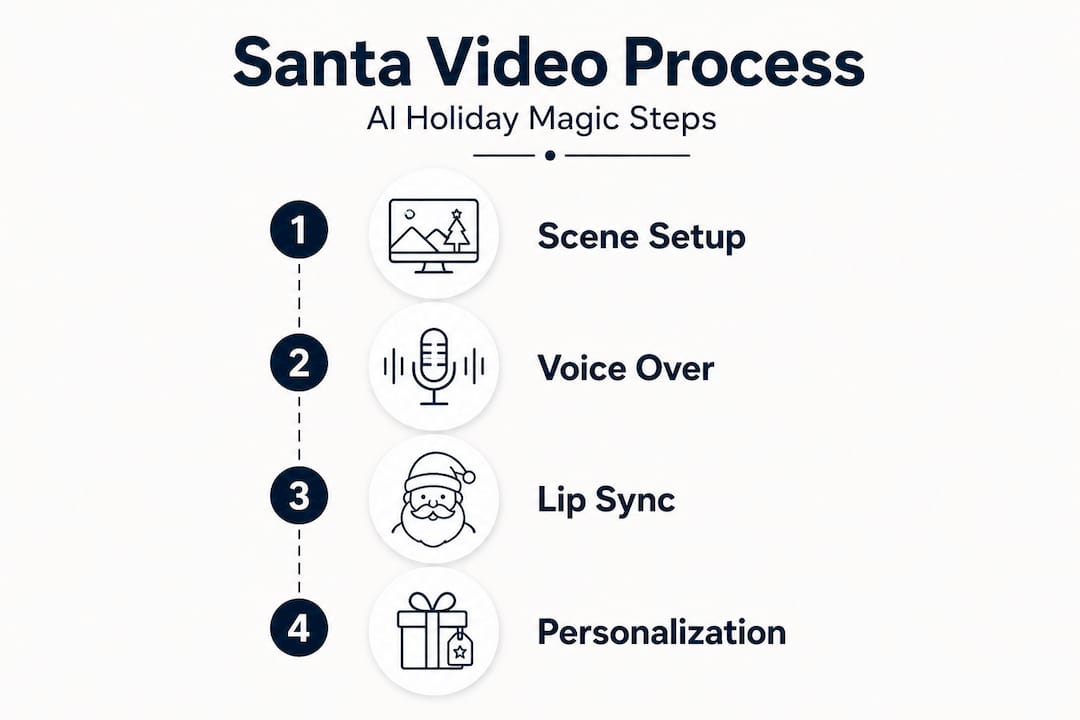
"Mechanically, these Santa video tools generally combine (1) script or prompt-to-scene generation, (2) voice/narration (often text-to-speech), (3) lip-sync to the spoken audio, and (4) render/export of the final video." — ElevenLabs Santa AI video creation
When you explore AI Christmas videos, you'll see that this pipeline is what separates genuinely magical results from simple sticker overlays. Understanding these four stages helps you make smarter choices when selecting a platform and crafting your message.
Here are the core terms you'll encounter:
- Scene generation: The AI creates or places a visual environment where Santa appears.
- Voiceover/narration: Text-to-speech technology gives Santa a warm, natural-sounding voice.
- Lip sync: The AI matches Santa's mouth movements to the spoken audio in real time.
- Render/export: All the pieces are combined and compressed into a shareable video file.
Personalizing Santa videos is where you add the real magic. Your child's name, their favorite toys, a mention of your family dog, these details get woven into the script and spoken aloud by Santa himself. That's what transforms a generic clip into a genuine keepsake.
The Santa video creation process step by step
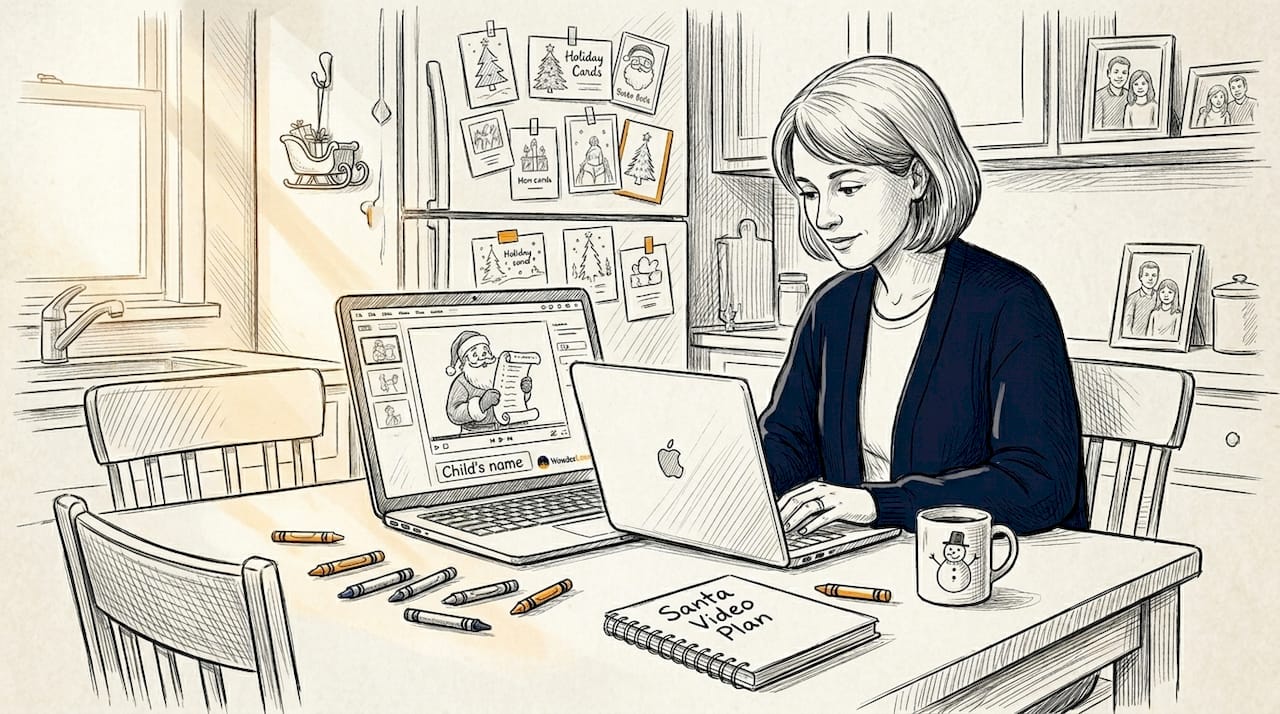
Now that you know what rendering means, let's break down exactly how a Santa video comes to life, from your idea to a keepsake file.
The process follows a clear sequence, and each step involves a partnership between what you provide and what the AI handles automatically. Here's how it flows:
- Enter your personalization details. You type in your child's name, a short wish list, and any family details you want Santa to mention.
- The AI generates a script. Using your inputs, the platform creates a short, age-appropriate message from Santa.
- Voice narration is created. Text-to-speech technology reads the script aloud in a warm, expressive Santa voice.
- Lip sync is applied. The AI maps Santa's mouth movements to match the audio precisely, frame by frame.
- The scene is rendered. Everything, including the Santa figure, the background, lighting, and shadows, is combined into a single video.
- The final video is exported. You receive a shareable file you can download, send to family, or play on Christmas morning.
This is exactly the four-stage pipeline that modern platforms use: prompt-to-scene generation, voice/narration, lip sync, and render/export. Each stage builds on the last, which is why the quality of your input at step one directly affects the magic of your final video.
Here's a simple breakdown of the collaboration at each stage:
| Stage | What you provide | What the AI does |
|---|---|---|
| Script input | Child's name, wish list, family details | Generates a warm, personalized Santa message |
| Voice narration | Tone preference (if offered) | Creates natural-sounding audio using text-to-speech |
| Lip sync | Nothing, it's fully automated | Matches mouth movements to the audio perfectly |
| Scene rendering | Photo or setting (on some platforms) | Places Santa into the scene with realistic lighting |
| Export | Download or share preference | Compresses and delivers a shareable video file |
When you look at Santa animations for kids, you'll notice the best ones feel spontaneous and real precisely because every stage was handled with care. The videos kids love most are the ones where Santa says something only their family would know.
Pro Tip: Keep your personalization message short and specific. For young children under age six, one or two personal details (their name plus one toy) land better than a long list. Simple and specific always feels more magical than a general speech.
How fast is Santa video rendering, and what affects the results?
Once you understand the steps, it's important to set realistic expectations for timing, since speed and results can vary more than you might think.
Cloud-based platforms (the kind you use in a browser, like WonderLens) typically deliver your finished video in anywhere from two minutes to around twenty minutes. Local rendering, where software runs directly on your own computer, can take longer depending on your machine's processing power. For most parents, cloud platforms are by far the easiest and fastest option.
But here's something worth knowing: render speed varies widely based on system settings, project complexity, and any post-processing steps. A platform might advertise near-instant delivery, but the real-world experience often includes a preview step, potential revisions, and final compression before you have a download link in hand.
| Scenario | Typical time to delivery |
|---|---|
| Short clip, pre-designed template | 2 to 5 minutes |
| Custom script with name personalization | 5 to 15 minutes |
| Longer video with scene placement | 10 to 25 minutes |
| Full revision after preview | Additional 5 to 15 minutes |
Several factors genuinely affect how fast and how good your result will be:
Video length. Longer videos take more time to process and render. A ten-second clip is always faster than a forty-five-second one.
Level of personalization. The more variables the AI must weave into the script and scene, the more processing power it needs.
Visual style. Cinematic, realistic rendering with proper lighting and shadow takes longer than a simpler animated style.
Server load. Cloud platforms can be slower during peak holiday periods, especially in December. This is worth planning for.
Post-processing and compression. Once the AI finishes rendering, the video must be compressed into a format you can download and share. This adds a small but real amount of time.
When you use family photo animation tools, you get the added benefit of placing Santa directly into your own home environment, which adds an extra layer of realism but may also require a bit more processing time.
Pro Tip: Choosing a pre-designed template instead of building a fully custom scene from scratch can cut your delivery time in half. Templates already have the lighting, background, and character animation locked in, so the AI only needs to personalize the script and voice.
What makes rendered Santa videos feel magical for kids?
Understanding the nuts and bolts is crucial, but it's the impact on your child's experience that truly matters. Here's how technology creates holiday wonder.
The magic comes from a very specific combination of elements working together. No single feature is responsible. It's the layering of realistic voice, natural facial movement, and personal details that makes a child's eyes go wide.
Here's what genuinely makes the difference:
- Natural voice quality. Modern text-to-speech gives Santa a warm, unhurried voice that sounds like a real person, not a robot.
- Accurate lip sync. When Santa's mouth matches his words perfectly, the brain accepts it as real. Even young children pick up on mismatched lip movements.
- Personalized script. Hearing their own name spoken by Santa is powerful for kids. Adding a specific toy or a family pet's name makes it feel like Santa truly knows them.
- Realistic lighting and shadows. The best platforms ensure that Santa casts a shadow and catches the same light as the room around him, making the scene feel physically believable.
- Subtle movement details. Small animations like Santa adjusting his glasses, chuckling softly, or glancing at a list add believability without feeling exaggerated.
The Santa video personalization features on quality platforms let you include all of these layers. And when they come together, the result is genuinely special.
As one mom described after watching her daughter's reaction: Santa videos using AI tools combine script personalization, speech, lip sync, and rendering to create something that feels completely real to a child.
"She grabbed my arm and whispered, 'Mommy, how does he KNOW my name?' I had to look away so she wouldn't see me crying. Best $2 I've ever spent."
That reaction is exactly the goal. Rendering technology isn't just about making a video look good on screen. It's about creating a moment of genuine wonder that your child carries with them long after the holidays are over. The technology serves the emotion, and when it's done right, the emotion is everything.
The truth about Santa video rendering: What most guides miss
With all this in mind, it's worth stepping back to share some practical wisdom most online guides overlook.
Most articles about Santa video rendering focus on how fast and easy the process is, and while that's largely true, it gives parents an incomplete picture. Here's what we've learned from watching families create these videos season after season.
Speed claims can be misleading. A platform might say it generates a video in seconds, but real-world turnaround almost always includes a preview step, potential rewrites, and post-processing time. Those benchmark speeds are best-case scenarios. Your specific clip, with its unique script and rendering requirements, may take longer, and that's perfectly fine as long as you plan for it.
Revisions are normal, not a sign that something went wrong. If your first preview doesn't capture Santa's voice exactly as you imagined, or the personalization feels slightly off, expect to run through one or two cycles. Quality platforms make revision straightforward, but it does add time. Rushing this step to get a quick result often means settling for a video that's good instead of one that's genuinely magical for holiday memories.
The most important insight: quality almost always matters more than speed for a memory this significant. A video that makes your child cry happy tears on Christmas morning is worth waiting an extra ten minutes for. Think of it the way you'd think about any meaningful gift. You wouldn't rush wrapping a special present. Give your Santa video the same care.
Pro Tip: Start your Santa video at least a week before Christmas. This gives you time to preview the result, request any revisions, and have the final file ready to play at exactly the right moment, without any December deadline pressure working against you.
Make this Christmas unforgettable with your own Santa video
You're now equipped to turn these insights into an unforgettable holiday moment for your family. You understand what rendering actually means, how the AI handles each stage of production, what affects your results, and how to set yourself up for the best possible outcome.
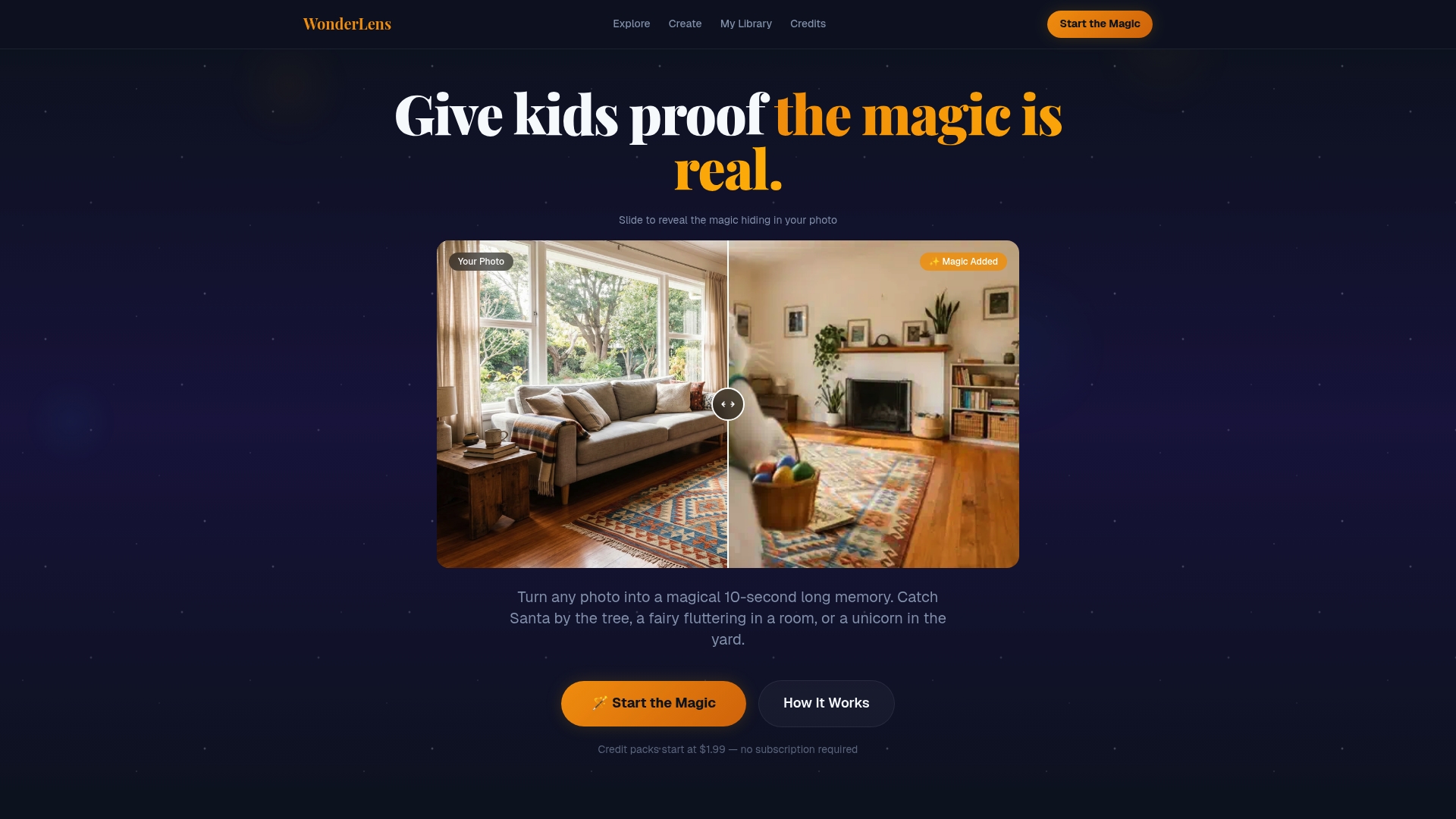
WonderLens makes the entire process beautifully simple. Upload a photo of your living room, choose your personalization details, and watch as Santa steps into your actual home, calling your child by name, acknowledging their wish list, and glowing in the same warm light as your family's Christmas tree. The platform handles everything from scene generation to lip sync to final export, so you can focus entirely on the joy of the moment. Credits start at just $1.99, making this one of the most affordable and memorable gifts you can give this holiday season. Visit WonderLens and create your family's Santa video today.
Frequently asked questions
How is a Santa video different from a standard animation?
Santa videos use AI-driven personalization and lip sync to create realistic, interactive holiday greetings with your child's name and details, rather than playing a generic pre-made cartoon.
Can I include my child's name or wish list in a Santa video?
Yes, absolutely. Modern platforms use prompt-to-scene generation to weave your child's name, favorite toys, and personal details directly into Santa's script and spoken message.
How long does it take to get a finished Santa video?
Turnaround typically ranges from a few minutes to around half an hour, since render speed varies by platform, project complexity, and any post-processing or revision steps involved.
What makes a rendered Santa video look so real?
Advanced AI lip sync and voiceover integration, combined with realistic lighting and personalized scripts, are what make Santa feel genuinely present and believable to young children.
Is technical skill required to make a Santa video?
No technical skill is needed at all. You simply enter your child's details and personal message, and the AI takes care of scene generation, voice, and rendering automatically from start to finish.
Recommended
- AI Christmas Videos: Create Magical Holiday Memories Fast — WonderLens | WonderLens
- AI-powered photo animation: create magical family memories — WonderLens | WonderLens
- Catch Santa Claus in Your Living Room — Realistic Video Proof | WonderLens | WonderLens
- How Santa animations enhance Christmas magic for kids — WonderLens | WonderLens