How to Craft Festive Keepsakes Kids Will Watch on Repeat
August 19, 2026
The fastest way to craft a festive keepsake your kids will treasure: turn one clear photo into a 10-second cinematic clip. Upload a single, well-lit photo of your child, pick a holiday or fantasy character, add one or two lines of personalized script, and render it at Pro/1080p quality. A service like WonderLens handles the lighting and shadow work for you, while free extras like ChatGPT's holiday tools (Elf Enrollment, Santa's Toy Lab, and Christmas Story Creator, built with NORAD) add a fun bonus layer.
- Photo: one subject, clean background, good light
- Script: one or two lines, name-led and specific
- Render: Pro/1080p for anything you plan to share
- Bonus: pair with free ChatGPT holiday tools for extra story content
Image-to-video AI tools typically animate a still photo into clips running 2 to 6 seconds, and family-sharing recommendations tend to favor short, replayable formats over long productions. Ten seconds is the sweet spot for something a child will ask to watch again and again.
Key Takeaways
Crafting a festive keepsake comes down to a clean photo, a short script, and picking the right tool for your patience level and polish goals.
| Step | What to Do | Time Needed |
|---|---|---|
| Plan | Choose theme, photo, and one short line | ~30 minutes |
| Prepare photo | Crop, clean background, use natural light | 5–10 minutes |
| Choose method | DIY tool vs. service like WonderLens | Decision point |
| Upload and render | Add script, select Pro/1080p quality | 5–15 minutes |
| Preview and adjust | Fix floating characters or lighting mismatches | 5–20 minutes |
| Download and share | Export MP4, send or save | ~5 minutes |
Table of Contents
- What to Have Ready Before You Start
- Step-by-Step: How to Craft Festive Keepsakes That Look Cinematic
- Creative Ways to Personalize Your Keepsake
- How Do You Make the Character Look Real in Your Room?
- Is It Safe to Share My Child's Photo for This?
- What Does It Cost and How Long Does It Take?
- Why WonderLens Is the Fastest Path to a Polished Keepsake
- Basic Troubleshooting Tips for Common Issues
- Where to Share and Gift Your Finished Keepsake
- A Note From the Author
- Try WonderLens for a Fast, Polished Keepsake
- Frequently Asked Questions
- Sources
What to Have Ready Before You Start
Getting a great result on your first try comes down to prep. Gather these before you open any tool:
- The photo: one subject, an uncluttered background, and the best resolution you have. A portrait-mode phone shot works fine.
- Personalization details: your child's name, a one- or two-line script or prompt, and a small detail worth mentioning, like a red scarf or a favorite stuffed unicorn.
- The practical stuff: a browser, a way to pay or credits if you're using a paid service, MP4 as your export format, and a plan for where the clip will land, whether that's a family group chat, an email, or a private social post.
Pro Tip: Pick one greeting and one small action, not a full monologue. A short "Hi Maya, Santa brought your sparkly boots!" paired with a wink outperforms a long script every time, because keepsakes that families rewatch tend to be short and focused rather than dense.
Step-by-Step: How to Craft Festive Keepsakes That Look Cinematic
Here's the workflow that gets you from idea to shareable video without wasted credits or hours of trial and error.
- Plan (about 30 minutes). Pick your theme, holiday or fantasy, choose the photo you'll use, and decide on one short line and one small action: a wave, a wink, a burst of sparkle.
- Prepare the photo (5 to 10 minutes). Crop tight on your subject, clear away background clutter if you can, and shoot in natural light. The AI reads depth and lighting cues from that single image, so a clean shot matters more than a fancy one.
- Choose your method. This is the real decision point. A quick DIY tool can be cheaper and faster to start, but expect some trial and error tuning prompts and lighting. A service like WonderLens trades a small credit cost for cinematic lighting, realistic shadow integration, and a polished 10-second result on the first or second try, which matters if you're building personalized video for kids that needs to feel real, not gimmicky.
- Upload and describe (5 to 15 minutes). Upload your single-subject photo, choose a character and a mood (gentle, playful, cinematic), and paste in your one or two lines. Select Pro/1080p rendering if you plan to share the clip anywhere beyond a quick text.
- Preview and adjust (5 to 20 minutes). Run a fast preview first. If the character looks like it's floating or the lighting feels off, tweak the photo or the prompt and try again before spending credits on a final render.
- Download and share (about 5 minutes). Export as MP4, add a short caption if you like, and send it to the family chat or save it for the big reveal on the day itself.
A full run using a service typically takes 20 to 60 minutes, previews included. DIY tools can take 30 to 90 minutes once you factor in a few rounds of revisions, since template-based image-to-video tools generally need lighting adjustments and high-resolution inputs to hit a cinematic look on the first pass.
Pro Tip: Always run the fast preview before committing to a Pro render. It costs less, and it catches floating characters or mismatched lighting before you spend real credits fixing them. Keep your source photo and finished MP4 in one folder. You'll want it again next year.
Creative Ways to Personalize Your Keepsake
The difference between a fun clip and one your kid begs to rewatch is specificity. Generic scripts feel like a filter. Personal ones feel like magic.
- A name-led greeting: "Hi Maya, Santa delivered your sparkly boots!"
- A shared memory: "Remember the dragon sticker you won at school?"
- A celebratory line: "Happy sixth birthday, now give me a big dragon roar!"
- Santa whispering a small secret just for them
- A unicorn dropping off a glowing star as a nightly wish
- A dragon reading a one-line bedtime message in a gentle, cinematic tone
When you write your own prompt, include four things: your child's name, one personal detail, the action you want, and the mood you're going for. Rotate the small details each year, same character, new line, and the keepsake grows into a short-running family tradition instead of a one-off surprise. Check holiday keepsake ideas for more theme inspiration by age and occasion.
How Do You Make the Character Look Real in Your Room?
A handful of small choices separate a convincing keepsake from one that looks pasted on.
- Stick to a single-subject photo with a clean background. The AI needs clear depth and lighting cues to place a character convincingly, and busy, multi-subject photos are the top reason animations look distorted or floaty.
- Favor natural side or window light over strong backlight. A clear light source gives the renderer something to build believable shadows from.
- Use your highest-resolution image. A recent phone shot in portrait mode usually beats an old, compressed photo, and Pro/1080p rendering shows the difference.
- Upload PNG or high-quality JPG, and export the final clip as MP4 for easy sharing anywhere.
Pro Tip: If a character still looks detached from the room, try a second photo shot from a slightly different angle, or mention the light source directly in your prompt (window light, lamp glow) so the shadows line up.
Is It Safe to Share My Child's Photo for This?
Yes, with a few sensible habits. Get permission from any caregivers involved, and if your child is old enough to have an opinion about it, ask them too before you post anything widely.
- Use a password-protected account, and store your original photos and finished videos in a private folder or encrypted cloud storage if privacy matters to you.
- Share through private family groups or direct messages rather than public posts, unless you're intentionally publishing the clip.
- Leave exact addresses, school names, or other identifying details out of your script and captions.
- If you're using a service, check its family-friendly policy and data-retention settings, and ask about deleting source photos after rendering if you'd rather not keep them on file.
What Does It Cost and How Long Does It Take?
Budget and patience both factor into which route makes sense for your family.
- DIY tools often run on pay-per-render or credit packs. Previews are frequently free, but a shareable Pro-quality output usually costs a credit or two. Expect a lower price per clip, but more time spent troubleshooting lighting and prompts.
- A service route uses a similar credit model but trims the guesswork. A polished 10-second keepsake typically takes 20 to 60 minutes start to finish, including previews and a final render.
- Pro/1080p renders cost more credits than fast preview renders, and first-video-free promotions are common, so there's little reason not to test the workflow before buying a pack.
- Choose DIY when you have time to experiment. Choose a service when you want speed and consistent, realistic lighting on the first attempt.
Why WonderLens Is the Fastest Path to a Polished Keepsake
WonderLens turns a single photo into a 10-second cinematic video, with lighting and shadows built to match your actual room, not a flat sticker laid on top. It runs entirely in the browser, uses a simple credit system, and gives you a free first video to test the workflow risk-free.
- More realistic than filter-style overlays, since the character casts shadows and reacts to your room's actual light.
- Faster to a finished result than DIY trial and error, thanks to built-in character motion presets.
- Family-friendly templates and safety-focused policies built for parents, not just tech enthusiasts.
Pro Tip: For your first try, use WonderLens's Pro/1080p preset with one of the built-in holiday or fantasy templates. It cuts down on prompt tuning and gets you a shareable result faster. You can see the underlying role AI plays in digital keepsakes if you want the technical detail behind the realism.
Basic Troubleshooting Tips for Common Issues
Most problems trace back to the source photo or the script, not the tool itself. Here's how to fix the usual suspects.
Character looks like it's floating. This almost always means the background was too busy or lacked clear depth cues. Swap in a photo with a simpler background and better contrast between your child and the space behind them.
Lighting doesn't match the room. If the character's shadow falls the wrong direction or looks flat, your source photo probably had mixed or weak lighting. Reshoot near a single strong light source, like a window, and mention that light direction in your prompt.
Script gets ignored or garbled. Long, complex scripts confuse renders more often than short ones. Cut your line down to one clear sentence and one action, then try again.
Render looks blurry or pixelated. Low-resolution source photos produce low-resolution results no matter what render quality you select. Start with the highest-resolution image you have, ideally shot in portrait mode with good light.
Preview looks fine but the final render disappoints. Rendering settings sometimes differ between fast preview and Pro output. Always check that you selected Pro/1080p before committing credits to your final version, and re-preview after any prompt change.
When something still looks off after two attempts, changing the photo angle fixes more problems than endlessly rewording the prompt.
Where to Share and Gift Your Finished Keepsake
Once you've got your 10-second clip, the fun part is choosing how it lands.
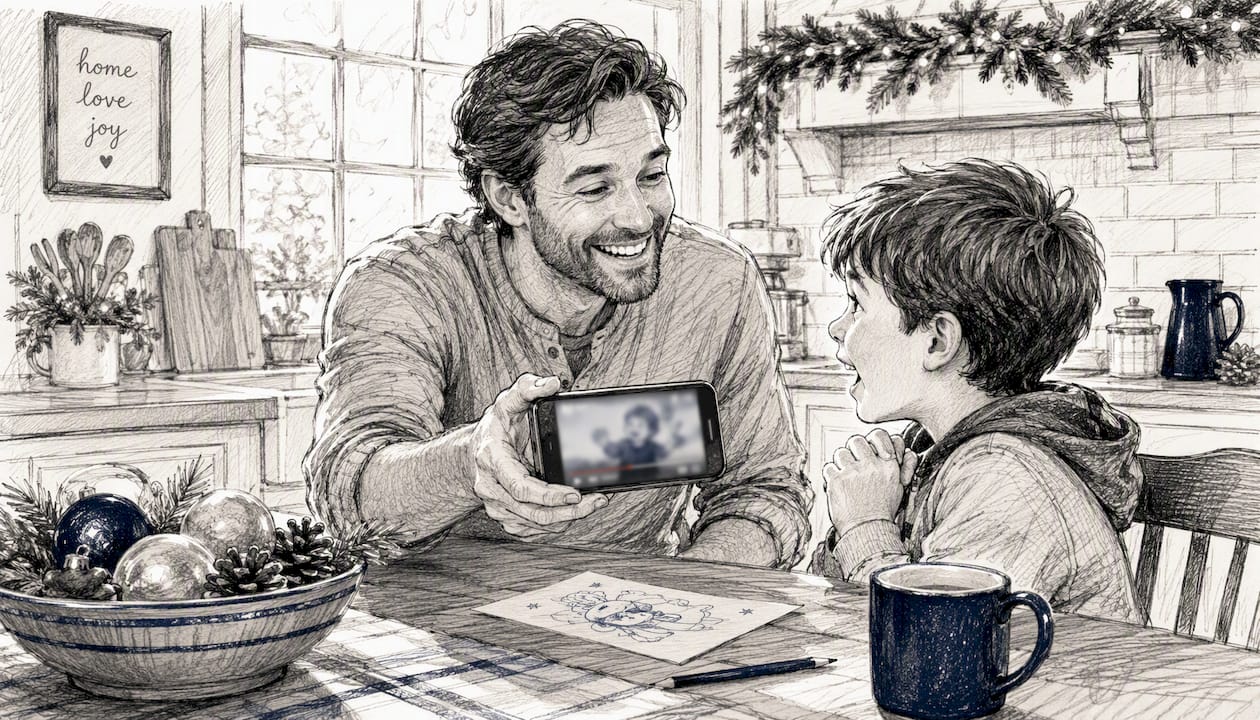
Family group chats and texts are the simplest option for an instant reaction, especially for grandparents or relatives who live far away. A short video like this often becomes an emotional touchpoint families rewatch, which matters even more for families separated by distance.
Email works well if you want to send a slightly more formal keepsake, maybe attached to a holiday card message or sent as part of a yearly family update.
Social media is the obvious choice if you're comfortable sharing publicly, though a private story or close-friends list gives you more control than a fully public post.
Printed stills make a sweet physical companion to the digital clip. Grab a frame from the video and print it alongside a QR code or link that plays the full animation, a fun way to bridge digital and physical keepsakes.
Building it into a tradition is where these clips earn their keep. Save each year's clip in the same folder, and by the third or fourth year you've got a mini family archive that beats any single photo. Look at examples of digital holiday traditions if you want a structure to follow.
A Note From the Author
These 10-second clips work because they're small enough to rewatch and specific enough to matter. I test these workflows regularly, and WonderLens consistently delivers the cleanest, most cinematic result with the least fuss.
Try WonderLens for a Fast, Polished Keepsake
WonderLens turns one photo into a shareable moment in under an hour, no editing software, no trial-and-error lighting fixes, no waiting on a professional. Your first video is free, so you can test the whole workflow before spending a cent.
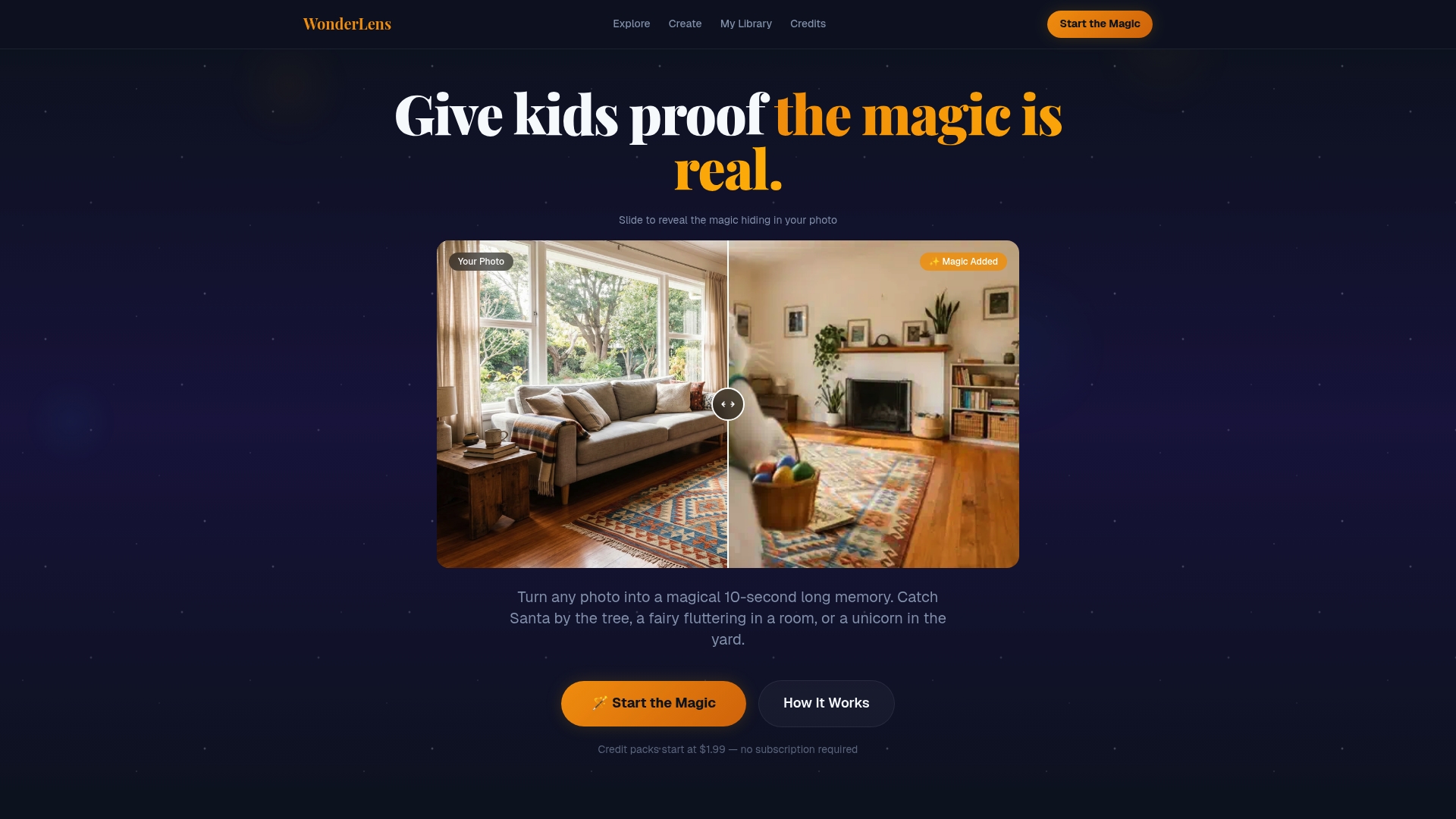
Credit packs work simply: a small starter pack covers your first few renders, and Pro/1080p outputs use more credits than fast preview renders, so it's smart to preview first and only spend credits on the clip you actually want to keep. For a family working through their first holiday season with WonderLens, a small starter pack is usually enough to test a couple of characters and land on a favorite.
Ready to see what your child's keepsake could look like? Head to the WonderLens landing page to claim your free first video and pick a character to bring into your living room tonight.
Frequently Asked Questions
How long should a personalized holiday keepsake video be? Ten seconds is the standard sweet spot. Research on image-to-video AI shows platforms commonly output 2 to 6 second clips as a base, and a 10-second final cut with one clear moment tends to hold a child's attention better than a longer, busier video.
Can I create festive keepsakes without paying for anything? Yes, to a point. Free tools like ChatGPT's holiday features, including Elf Enrollment and Christmas Story Creator, let you generate fun holiday content at no cost. For a cinematic animated video with realistic lighting and shadows, a credit-based service like WonderLens gives you a free first video before you decide whether to buy more credits.
What's the difference between a DIY tool and a service like WonderLens? DIY tools are usually cheaper per clip but require more trial and error with prompts, lighting, and character placement. A service handles lighting and shadow integration automatically, which typically gets you a polished, shareable result on the first or second attempt instead of the fifth.
Why does my animated character look like it's floating? This usually happens when the source photo has a busy background or unclear lighting, which makes it hard for the AI to read depth cues. Switch to a single-subject photo with a simple background and consistent light for a more grounded, realistic result.
Do I need a professional photo to get a good result? No. A recent phone photo shot in good natural light, with your child as the clear single subject, works well. Portrait mode on most phones is more than enough resolution for a sharp, shareable Pro/1080p render.
Sources
- How People Are Using AI to Preserve Family Memories - MobileMall Blog
- Animate a Fantasy Portrait with AI — Magical Particles, Glowing Eyes, Atmospheric Motion (2026)
- Magic Hour | Infernal Fantasy Guardian - Image-to-Video Template
Recommended
- How to add fairies to holiday videos kids will love — WonderLens | WonderLens
- Best Holiday Keepsake Ideas for Families in 2026. WonderLens | WonderLens
- 12 Creative Holiday Surprise Examples Kids Will Love. WonderLens | WonderLens
- Best practices for creating unforgettable holiday magic — WonderLens | WonderLens